Well you just bought yourself a new notebook with nvidia graphic card and you found out that the driver on the manufacturer’s support/download page (asus, acer, sony, msi, hp..) hasn’t been updated for some time and now you can’t run your newly bought game for your powerful notebook graphic card (gt 460m, gt 540m, gt 550m or gt 550m ..) or your graphic card performance is compromised. Out of desperation you go to the nvidia support page hoping to find the latest nvidia driver for your notebook. You download it and snap! There’s the error: “NVIDIA Installer cannot continue” – “This graphics driver could not find compatible graphic hardware”.

Don’t worry there is always a way with drivers, that is if you search long enough :) If you have changed a few notebook generations with nvida mobility graphic card through the years, you already know that nvidia doesn’t care particularly about updating their mobility drivers for specific manufacturers which is kind of frustrating. In fact I don’t know if there was a notebook ever built which the official nvidia mobility drivers do support. I’ll show you how to modify the nvidia mobility drivers to make them support your specific hardware. I have done this the easiest way possible for my Asus K53SV and it worked perfectly. It should work for other manufacturers as well, at least it’s worth a try :) .
* If for any reason you cannot do the steps below (lazyness doesn’t count :P ) please just write your notebook model and the Hardware ID from the first step of this guide and I will do my best to modify the driver for you.
** I reserve the right to feel lazy myself :)
Things you’ll need:
Reqired:
- Latest Official nVidia Notebook Drivers from nVidia Support Site (choose your model and operating system)
- Latest Official nVidia Notebook Drivers from your manufacturers website (Asus, Sony, Acer, HP, Lenovo, Dell, Toshiba) in my case Asus.
- Winrar – Install this free archiver for extracting the driver files
- Notepad++ – If you ever edit files for reason other than “post it” notes I recommend this file editing software. This is optional but it’s pretty handy
Ok let’s begin.
Step one: Copy Hardware ID
Find your hardware ID of your nvidia grahpic card for notebooks. TO do that right click on My Computer select Manage. Next choose Device Manager on the menu on the left. A list of all of your hardware will appear in your right window. Click on the Display adapters and depending on that if you have previously installed your driver you will find either: Standard VGA Graphic Adapter or your nvidia GT XXXM model.

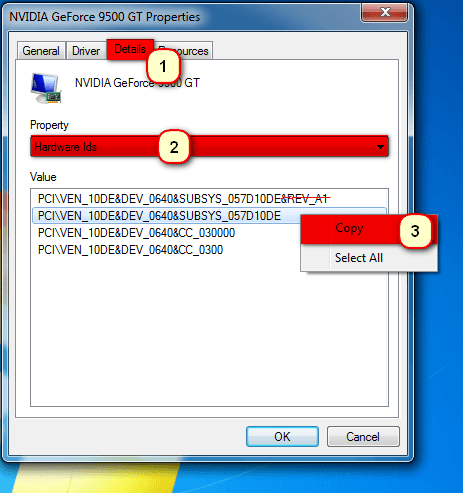
Whichever it is, right click on it and select Properties, Details from the tabs on top, and finally choose “Hardware Ids” from the Property menu. Now if you look at those phrases it looks like klingon, but it actually is wookiee :). Select the one which ends with the SYBSYS string, something like this:
PCI\VEN_10DE&DEV_0DF4&SUBSYS_15E21043.
It should be the longest of them all. If there is a longer phrase than that which has another & sign after that SUBSYS string (..&REV_A01) after that something like:
PCI\VEN_10DE&DEV_0DF4&SUBSYS_15E21043
&REV_A01
That’s not it. So right click on the correct hardware ID and select copy. Now it is stored into your clipboard and you can paste it any time. Don’t copy anything until you paste this one!
Step two: Extract
Extract both of the drivers that you have downloaded. The one from your manufacturer’s website and the latest version from nVidias Download page. I will use as an example the asus nvidia driver for the gt 540m on my Asus K53SV notebook which I downloaded from the Asus Download page. So right click on it and choose: “extract to …” and your driver files will be extracted to a folder where your file resides.
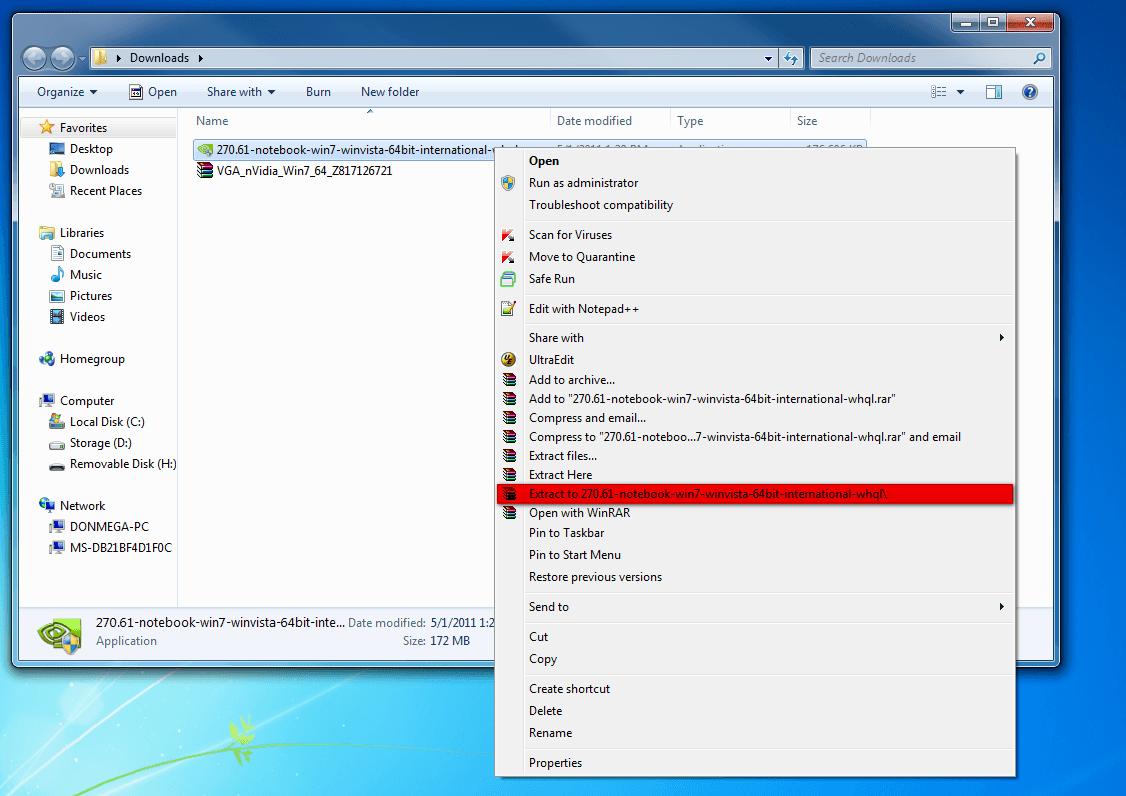
The same goes for the nvidia mobility driver for notebooks. Right click on the file (probably something like: 271.61-notebook-win7-winvista-64bit-international-whql.exe) and choose: “Extract to 271.61-notebook-win7-winvista-64bit-international-whql.exe\“. You will have two different driver folders correspondingly.
Step three: Copy Some Klingon Text
Now we will need to open two inf files with identical filenames from both drivers. Go to your newly created folder, the one where the asus driver was extracted, and you will notice more driver folders inside like: Display.Driver, Display.Optimus, Display.Update NV3DVision and some files like setup.exe etc. Navigate to Display.Driver folder and here you have to find out which of the *.inf files (nvaa, nvac, nvam, nvao, nvar..) contains your Hardware ID. You can do that with notepad++. Edit any inf file with it (let’s say nvaa.inf) and press Ctr+Shift+F to Find in Files. Then paste your hardware ID from step one into the “Find what:” and click the … button to navigate to the Display.Driver folder from the asus driver and choose that as a “Directory:” .
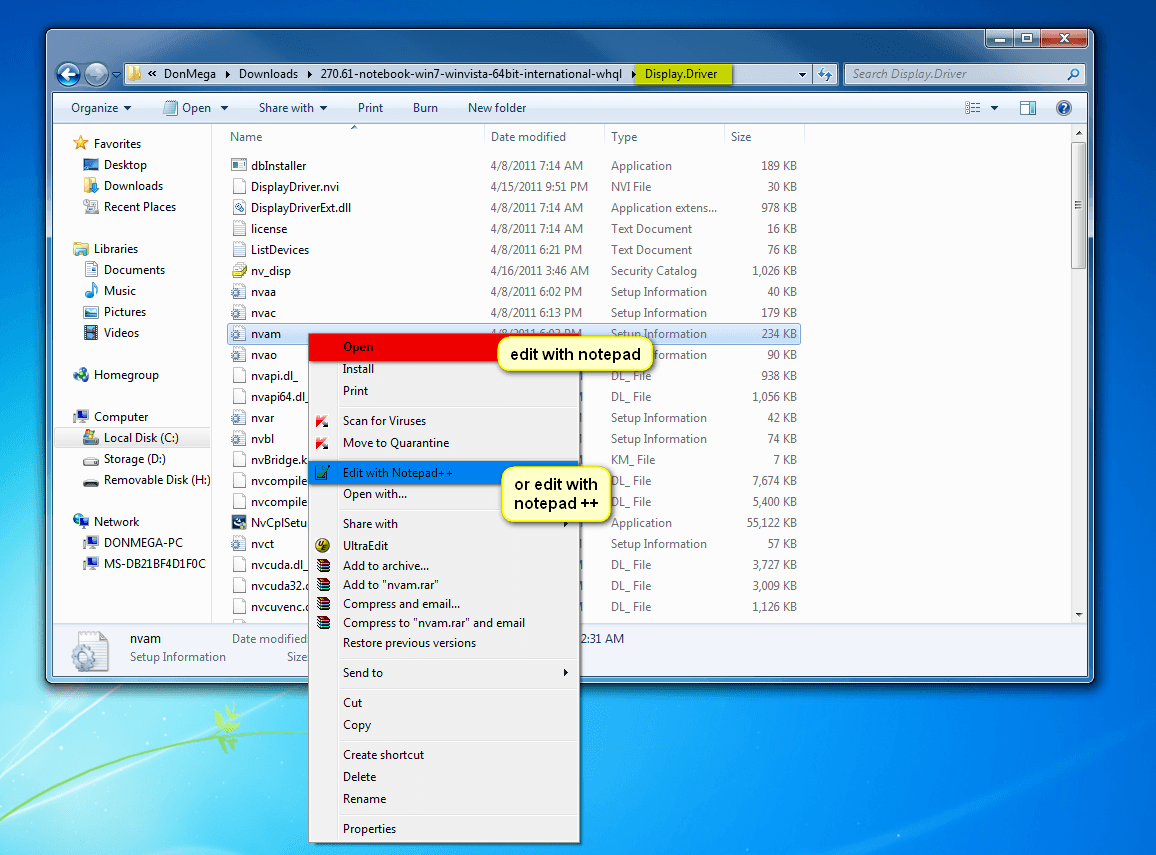

You will find a bunch of Klingon there as well, but don’t worry we only need to find and copy a few lines from there. Press Ctrl+F to search for a term, and in the search field Paste(Ctrl+V) the phrase we copied from Step one. If you have downloaded your correct driver you should find two lines(maybe more or less) with that phrase. Now copy the line where your term is contained, it should look something like this:
%NVIDIA_DEV.0DF4.01% = Section083, PCI\VEN_10DE&DEV_0DF4&SUBSYS_15E21043
and scroll up to the begining of that section to see what section it was copied from. It should be something like:
[NVIDIA_SetA_Devices.NTamd64.6.0]
Remember that section name.

Step four: Paste Klingon Text
Now navigate to the folder where the official nvidia driver was extracted(271.61-notebook-win7-winvista-64bit-international-whql). You will notice the same folders as in the previous driver. Again find the nvam.inf file in the Display.Driver folder and edit it. Now find the section from which you copied your line, add a new line by pressing enter and paste the one you copied from Step three.
*If there are more than one lines found containing the PCI\VEN_10DE&DEV_0DF4&SUBSYS_15E21043 phrase you will have to copy those lines from the Asus nvidia driver in to the latest official nvidia notebook driver which we are modifying by repeating step 3 and step 4 for the other lines as well. In my case the line:
%NVIDIA_DEV.0DF4.01% = Section069, PCI\VEN_10DE&DEV_0DF4&SUBSYS_105C1043
from section [NVIDIA_SetA_Devices.NTamd64.6.1]
Step five: Add VGA Name
Now after you added those few lines into the corresponding sections in our modified driver, copy the phrase whithin the % sings:
NVIDIA_DEV.0DF4.01 from
%NVIDIA_DEV.0DF4.01% = Section083, PCI\VEN_10DE&DEV_0DF4&SUBSYS_15E21043
and then do again a search in the Asus driver nvam.inf file for that term: NVIDIA_DEV.0DF4. Understandably you will find both of the lines which you already copied into the modified nvidia driver:
%NVIDIA_DEV.0DF4.01% = Section083, PCI\VEN_10DE&DEV_0DF4&SUBSYS_15E21043
from section [NVIDIA_SetA_Devices.NTamd64.6.0]
and the
%NVIDIA_DEV.0DF4.01% = Section069, PCI\VEN_10DE&DEV_0DF4&SUBSYS_105C1043
from section [NVIDIA_SetA_Devices.NTamd64.6.1]
the next find however should look something like this:
NVIDIA_DEV.0DF4.01 = “NVIDIA GeForce GT 540M”

Copy this whole line, and then copy it in the same section in the nvidia driver, under [Strings] . If you scroll down a little in that section, you will a list of nvidia graphic card names like:
NVIDIA GeForce GT 240M
NVIDIA GeForce GT 325M
NVIDIA GeForce 310M
NVIDIA GeForce GT 335M
NVIDIA GeForce GT 425M
..
And here you can find your graphic card model, and paste the one we copied on a new line, next to the same graphic card name for estetic reasons.
Step six: Replace CatalogFile
And finally compare the first section in the beginning in both nvam.inf files, [Version]. There is a value in that section called Catalog File and in the original nvidia driver looks like this:
CatalogFile = NV_DISP.CAT
BUT in the Asus driver in the nvam.inf file we have:
CatalogFile = nvam.CAT
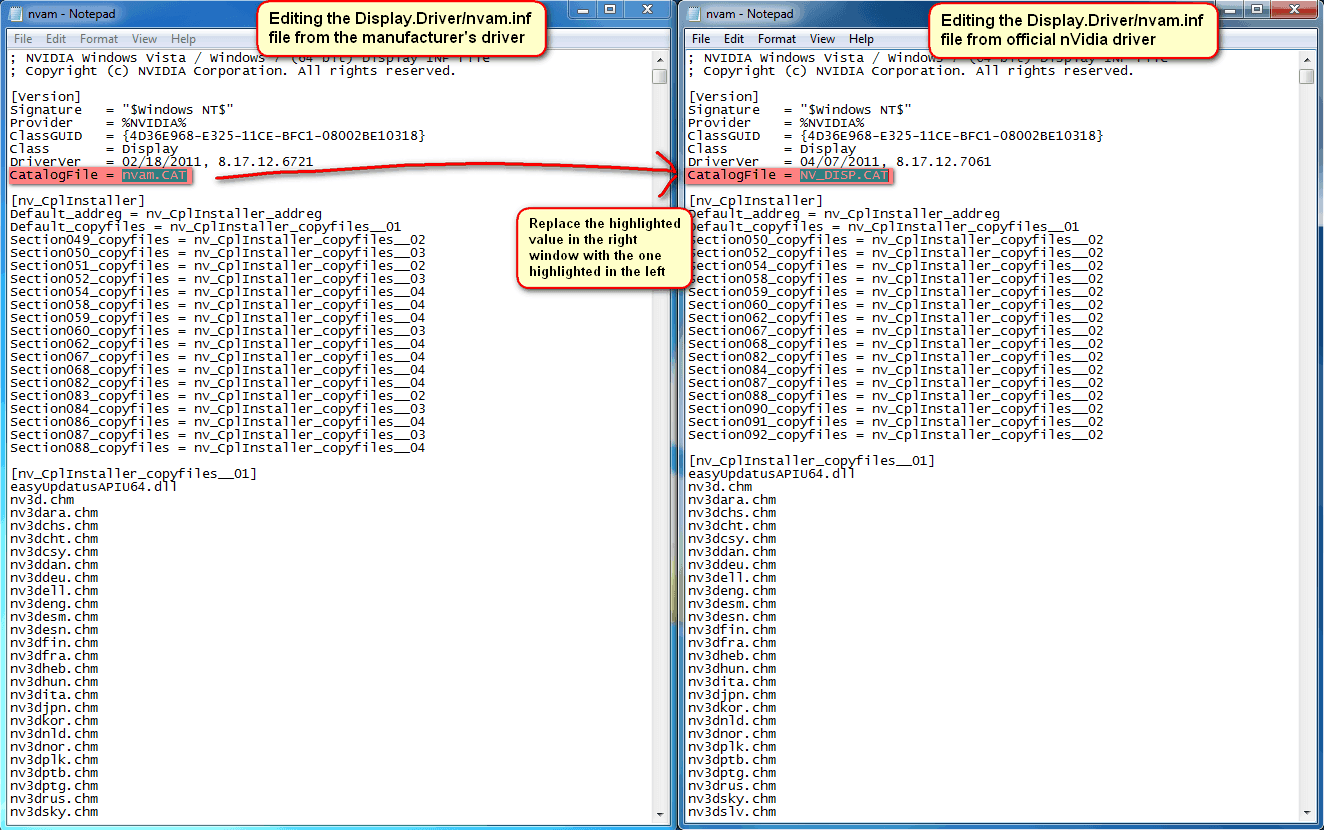
If these two values are different as in my case with the asus k53sv nvidia driver, copy the value from your manufacturer driver (asus in my case) into the nvam.inf in the official nvidia driver, the one which we modify. And that’s it.
Now beofre you run setup and reward your nvidia notebook graphic card with the latest nvidia notebook driver, uninstall your current nvidia driver (if any) maybe run driversweeper to clean any left overs and restart your machine.
If you have questions or any misunderstandings, you know how to use the comment box below :)